⚠️ Warning
"Missing TTOC for employee. Employee John Doe has an earning with W2 Box 12 Code TP but no TTOC is assigned. Please assign a TTOC to ensure accurate W2 reporting."
📘 What It Means
Employees who receive tips must
be assigned the correct Treasury Tipped Occupation Code (TTOC) per IRS
guidelines. This alert does not affect payroll processing at the time it
appears — however, it will impact W-2 reporting at year end if left unresolved.
🔍 Why This Happens
Congress passed the One Big
Beautiful Bill Act (OBBBA). Starting in 2026, tip income can be tax-free for
qualifying workers — but only if their job appears on the IRS-approved
occupation list. The IRS has approved 71 qualifying occupations. A TTOC must be
assigned to any tipped employee whose role is on that list so the system can
track tip income throughout the year and ensure employees receive the
appropriate tax credit when they file their 2026 personal tax return.
Important: This
alert will remain active until the TTOC is updated in each applicable
employee’s profile. Updates should be made as soon as possible — every quarter
that passes without the correct code assigned may have a direct impact on
accurate W-2 reporting at year end.
🔎 How to Identify the Correct TTOC
Use the link below to identify the appropriate TTOC for your employee. The link below is the approved TTOC Jobs directly from the IRS Website. If you do not see a job that matches your employee's job or you have questions on which TTOC to assign to your employees, please reach out to your CPA or a Tax Professional for guidance.
Please note, some industries are exempt from participating in the tip credit. In the case your industry cannot participate, notify your payroll specialist and we can remove the code all together, which would eliminate the error.
✅ How to Resolve
Once you’ve identified the
correct TTOC for each applicable employee, you can update the record in 2 ways, one way would be within the payroll processing screen as you're seeing the alert, or the other would be reviewing all employees from the team view. Below would indicate both options with step-by-step instructions. All warnings should be resolved as the alert is present and before any quarter end throughout the year. Please note, if you see that the field is greyed out, you will need to update the employee's assigned Job settings, which is also indicated below. If you run into any access issues, feel free to reach out to your assigned specialist.
 Step by Step Updating an Employee's TTOC Code
There are two ways to navigate to the TTOC field for an employee.
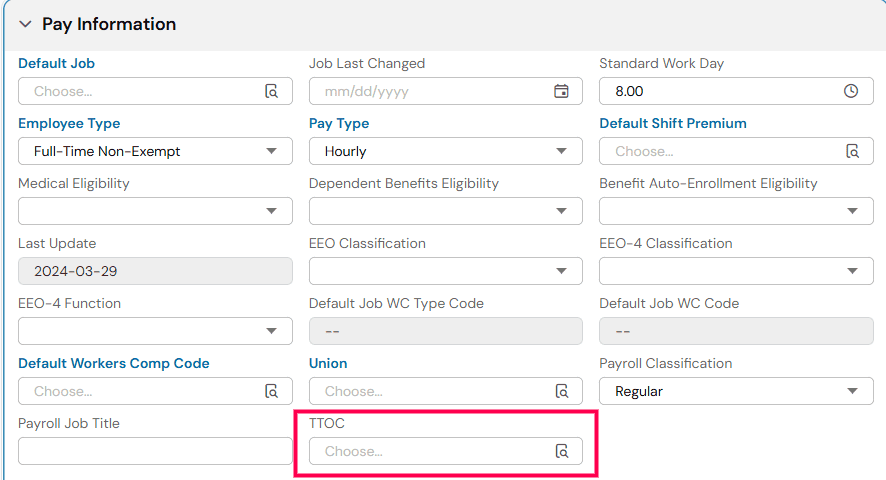
Select the Hamburger Menu.
Navigate to Team > Employee Information.
Select the employee.
Go to the Main tab.
Select Pay Information.
Click the magnifying glass icon and choose the corresponding TTOC code (reminder to use link to look up).
Save (upper right corner).
Option 2: Through Payroll Warnings
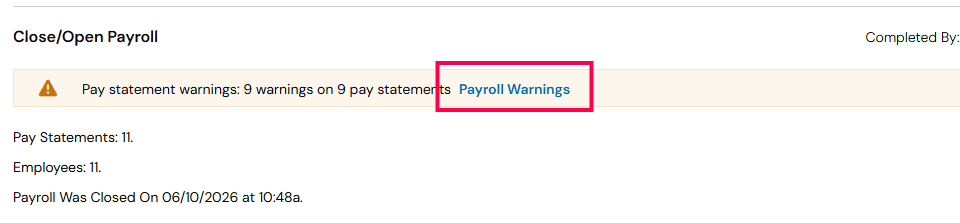
From the payroll warning screen, select the Payroll Warnings hyperlink.
Select the People icon next to the employee.
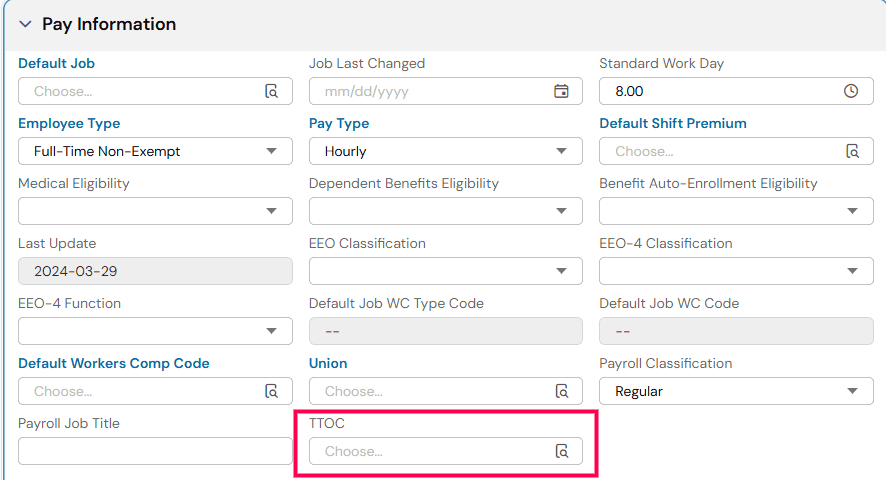
Go to the Main tab.
Select Pay Information.
Locate the TTOC field and choose the appropriate code.
Click the magnifying glass icon and choose the corresponding TTOC code (reminder to use link to look up).
Save (upper right corner).
Navigate back to payroll by clicking the small arrow in the upper left side of the employee's profile.
Once in the payroll, you can recalculate the pay statement or "SAVE" and the warnings will be removed.
If the TTOC Field Is Grayed Out
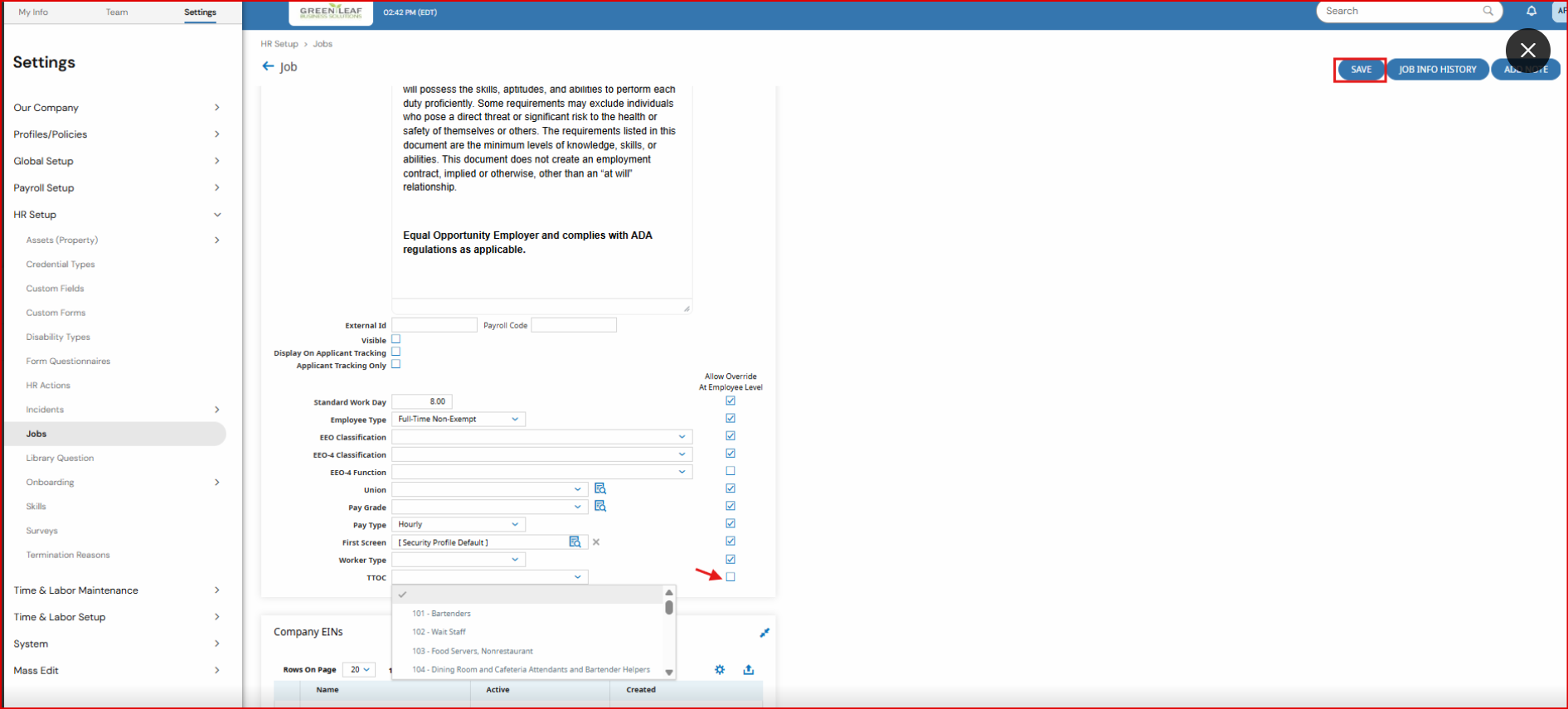
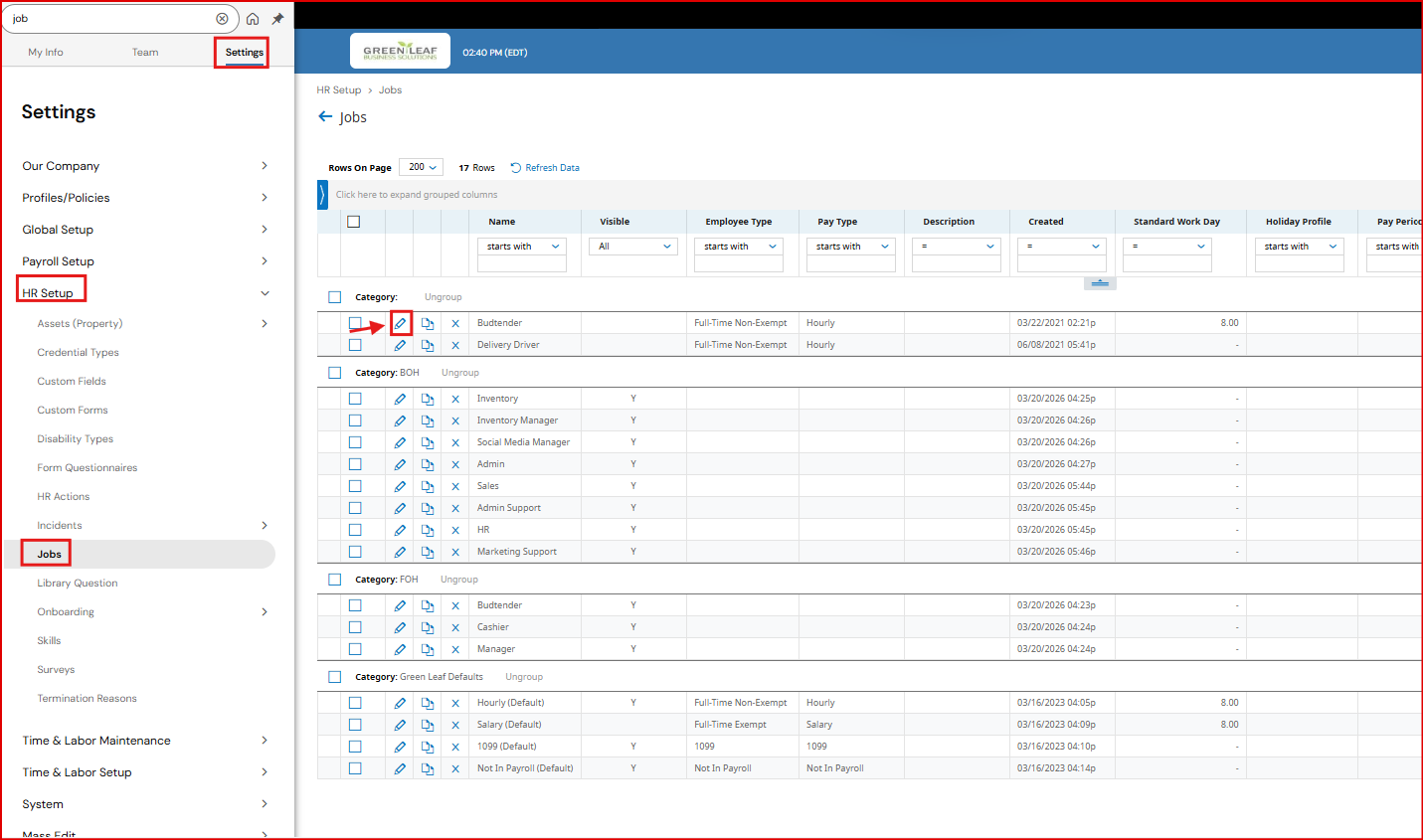
If the TTOC field cannot be edited, the employee's assigned job would require an adjustment either allowing an override at the employee level or assigning the code to the job assigned to the employee.
Go to the Hamburger Menu > Settings > HR Set Up > Jobs
Click the pencil for the job assigned to the employee.
Once within the Job you will have two options:
Option A: Assign a TTOC Code at the Job Level
Option B: Allow Employee-Level Overrides
Check the Employee Override option.
This allows a unique TTOC code to be entered for each individual employee.
After enabling Employee Override, return to Option 1 or Option 2 above to update the employee's TTOC code.